Route customer conversations to the right team
Automatically send new conversations to the right team with Workflows for faster, more efficient support.
Written By Markus Palm
Last updated 17 days ago
Overview
Routing conversations helps your team save time, improve response times, and ensure customers always reach the right people.
You can use Workflows to automatically route conversations based on customer attributes or conversation attributes (e.g. plan type, language, customer status, issue type, or urgency) or simply assign all incoming messages to a specific inbox.
This article shows how to:
Create a routing Workflow from scratch.
Customize rules to route conversations by customer attributes.
Set it live so every new conversation is handled automatically.
Get started
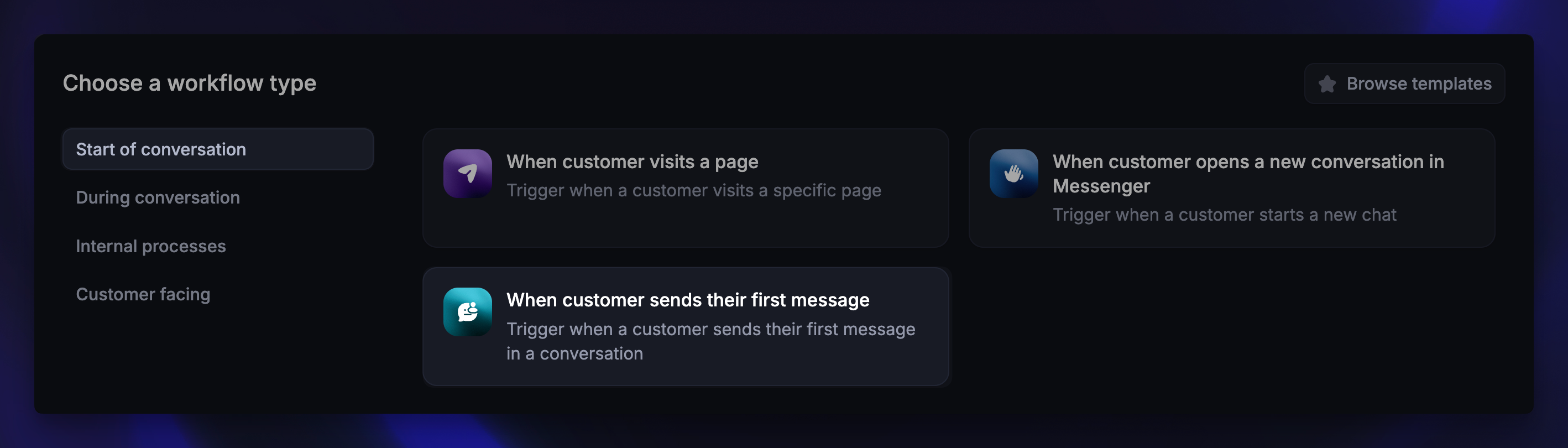
Go to Automations → Workflows
Click + New Workflow and choose Create from scratch
Select the trigger ‘When customer sends their first message’
This ensures the Workflow activates as soon as a new conversation begins - across web, mobile, email, or any supported channel.
Configure your trigger settings
First, configure the Trigger settings to decide who, where, and when the Workflow should run:
Where to send (e.g. Web, Email)
Audience (e.g. users, visitors, or specific customer segments)
Scheduling (e.g. always, or only during/outside of office hours)
For example, you could trigger the routing workflows only for logged-in users, trial customers, or high-value accounts through email or the Messenger widget.
When finished, click ‘Save and close’ to start building your workflow.
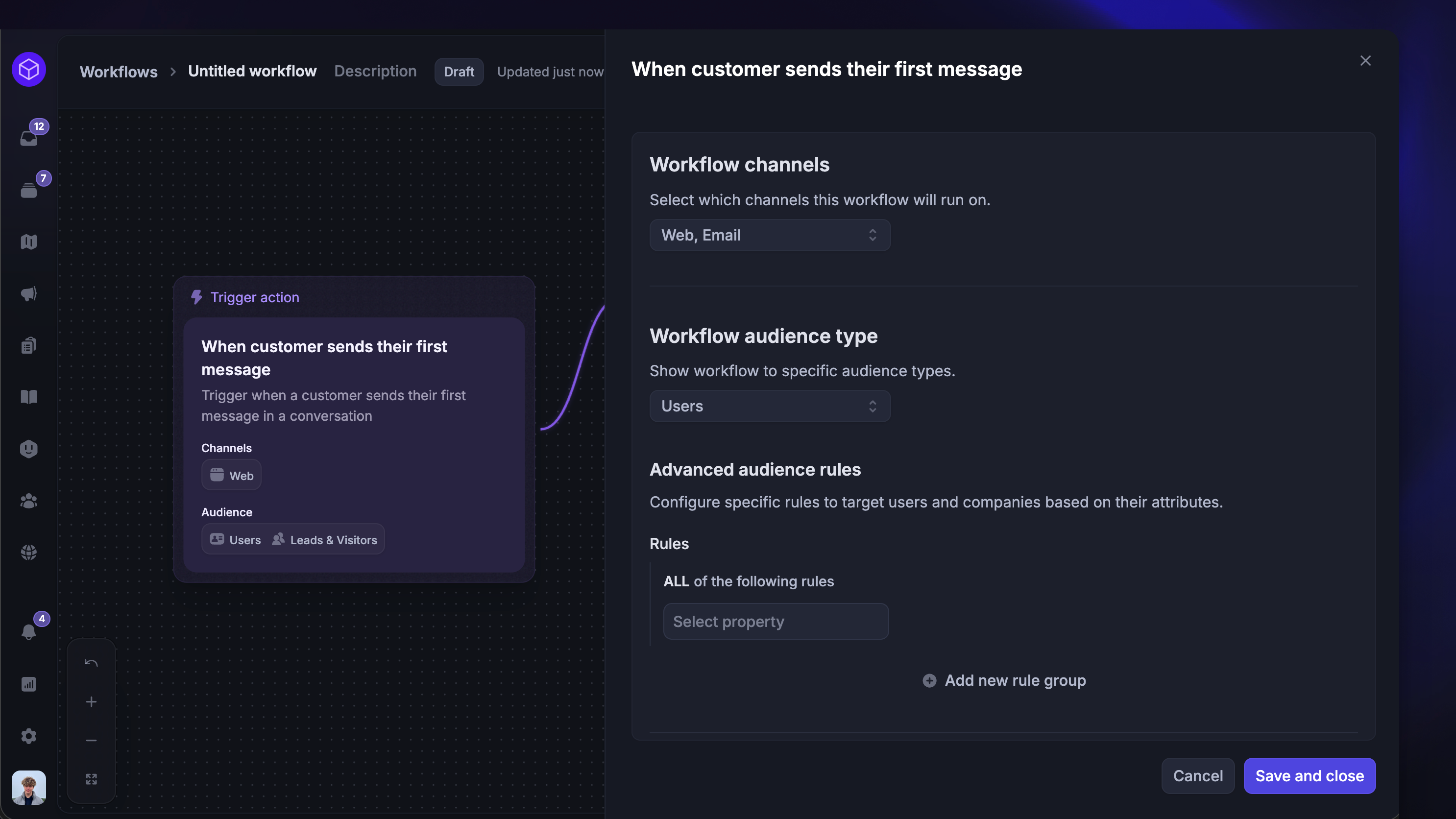
The workflow will trigger whenever a message is received on the selected channels and the customer matches your defined Audience rules.
Build your Workflow
Now you can start creating the logic for routing conversations:
Add conditional branches – use the Branches block to check for customer or conversation attributes, such as plan, region, language, product area, or urgency, to route customers automatically down the right path. For example:
If Plan is Enterprise → Assign to VIP Support
If Language is French → Assign to French Support Team
If Product area is Billing → Assign to Billing Support
Otherwise → Assign to General Support
Add an Assign action – to route all conversations to a specific team or inbox, add an Assign action. Select the team or teammate you’d like to handle these conversations.
Add supporting actions – you can enrich the Workflow by adding additional steps before or after assignment like:
Tag conversation (e.g. “VIP” or “French-speaking”)
Apply SLA to set response expectations
Mark as priority for key customers
Preview and set live - once your Workflow looks right, click Save and Set live
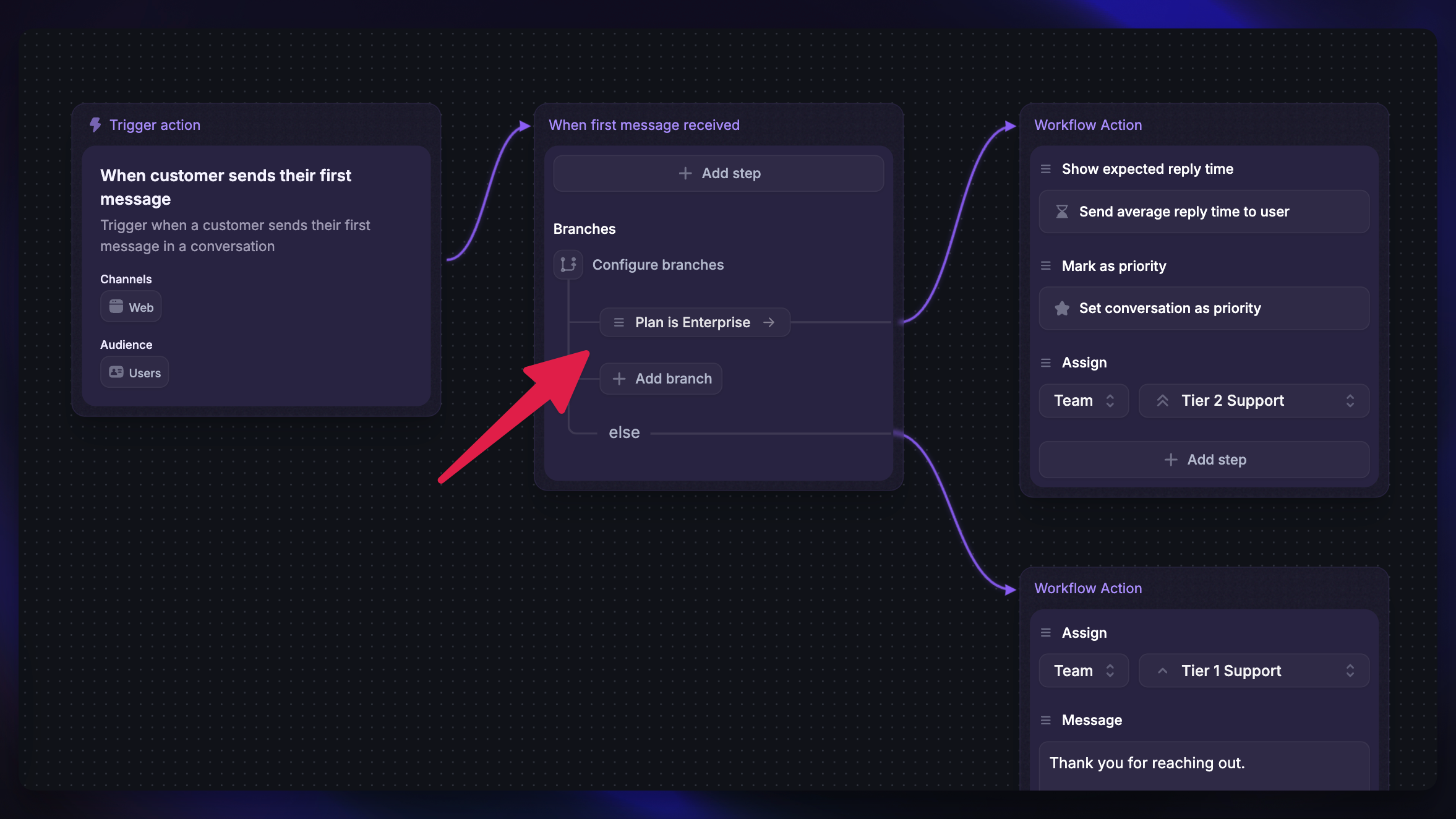
Your routing Workflow will now automatically assign conversations that match your rules - no manual triage needed.
Examples
Route by customer plan

Give premium customers faster service by routing them directly to your VIP support inbox:
If Plan is Pro or Enterprise → Assign to VIP Support
Else → Assign to General Support
Route by language or region
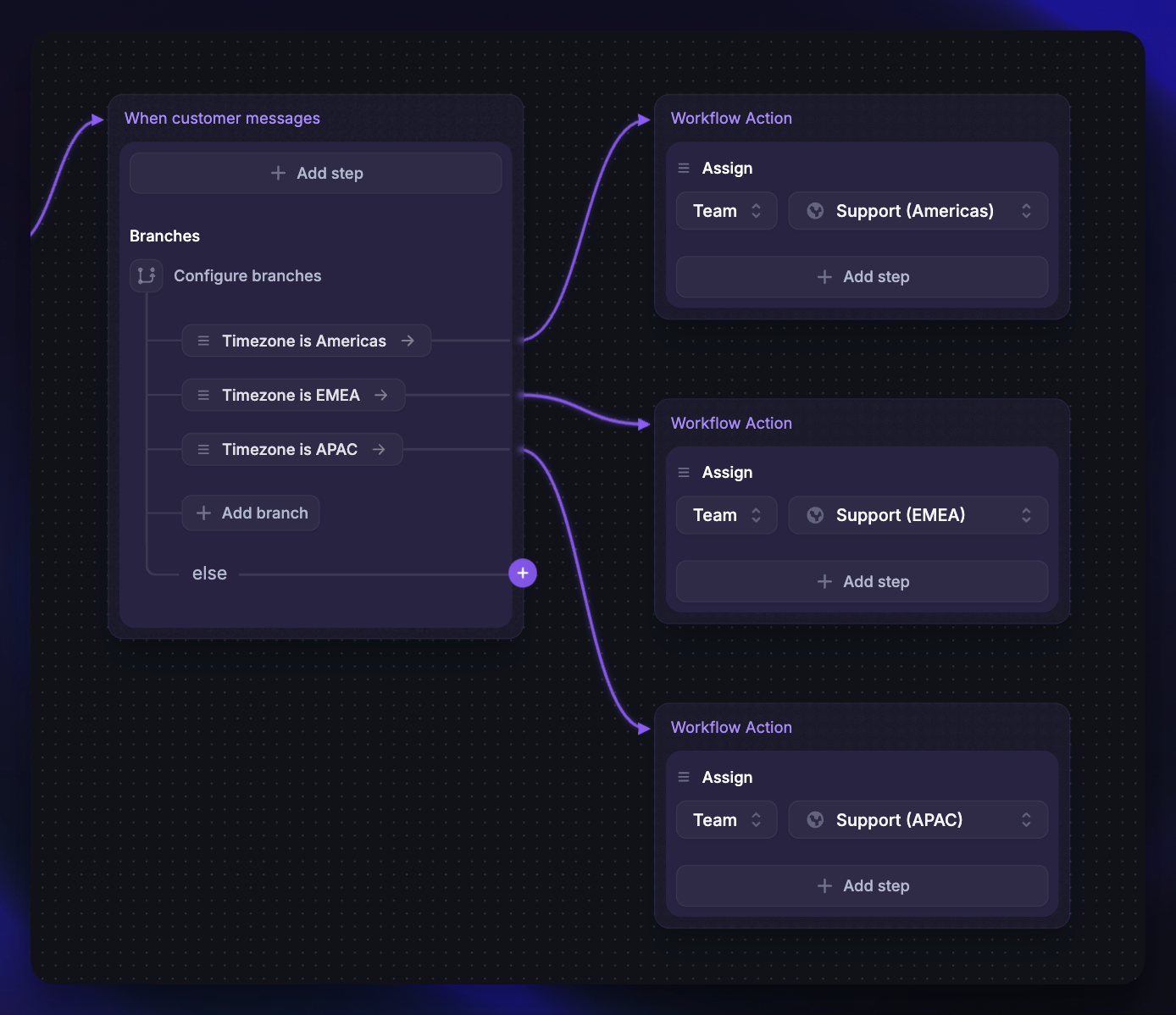
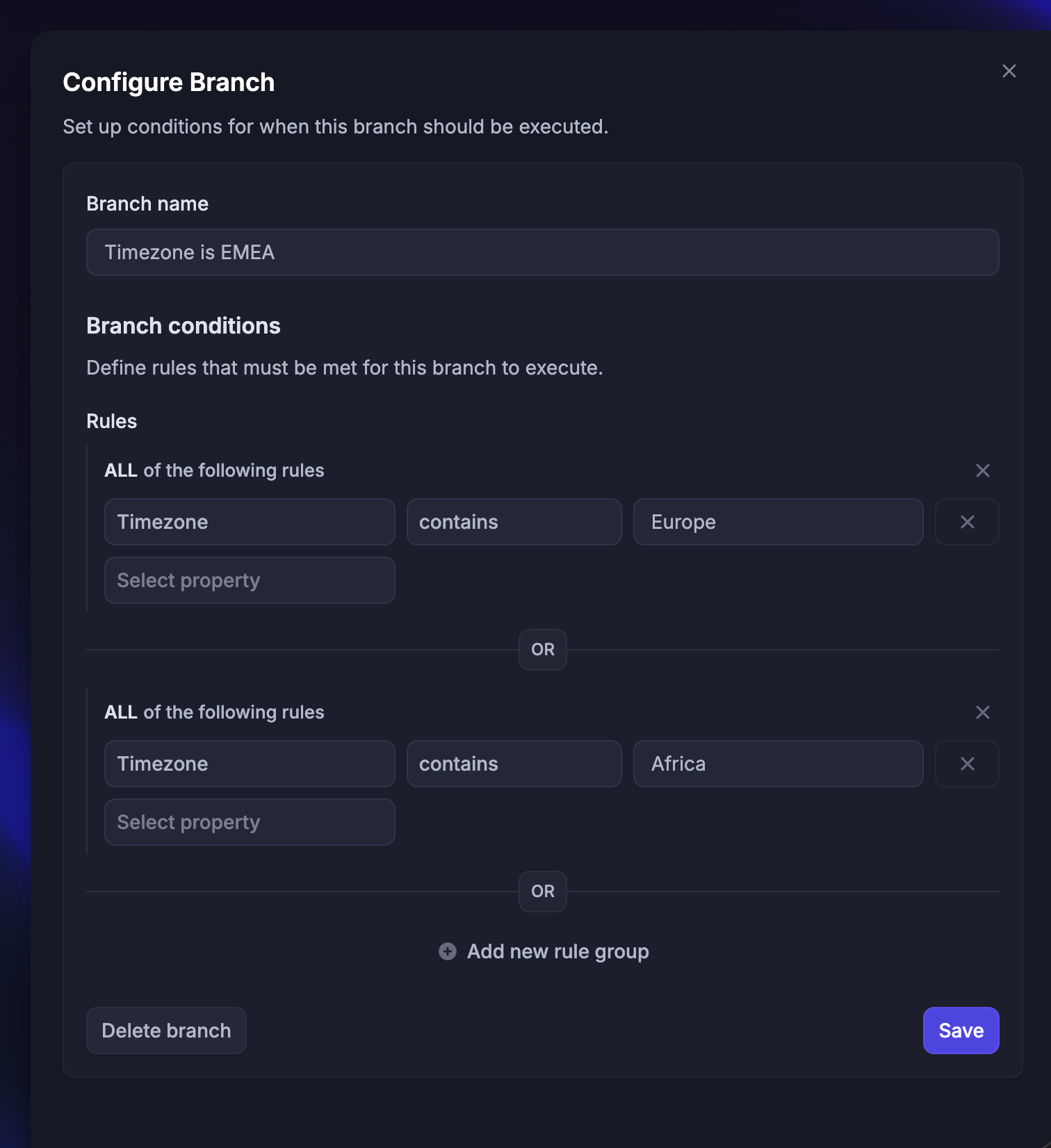
You can automatically assign conversations to the correct regional team depending on the customer’s detected timezone.
Set the trigger as “Customer sends their first message”
Add a Branch rules action with these conditions:
If customer timezone contains ‘america’ → assign to Support (Americas)
If customer timezone contains ‘europe’ or 'africa’ → assign to Support (EMEA)
If customer timezone contains ‘asia’ or 'australia’ → assign to Support (APAC)
Or add the Branch rules based on customers languages, for example:
If Locale contains French → Assign to French Support
Example branch rule
Example branch rule
Route by office hours

You can automatically route conversations and set expectations based on your office hours:
Set the trigger as “Customer sends their first message”
Add a Branch rules action with these conditions:
If Inside office hours is true → assign to Support and Show reply time
If Inside office hours is false → send a disclaimer message and ask for their email
Example branch rule
Example branch rule

Tips
Start small: Begin with Web or Messenger, then expand to other channels once it’s working well.
Check compatibility: Some actions may behave differently depending on the channel.
Keep it simple: If you’re new to Workflows, start with one rule and build complexity gradually.
Routing customers automatically ensures faster, more accurate responses - and gives your team more time to focus on what matters most: solving customer problems.
Was this helpful?
Still need help? Ask the team